



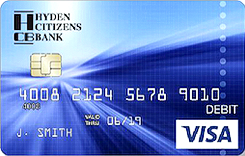
DEBIT CARD NEED-TO-KNOW
VISA SECURE ADDED SECURITY
Keeping your account safe and secure is our highest priority. In an effort to continue to protect your debit card, we are adding another layer of security for transactions that may be considered High Risk by our card processing company, SHAZAM. This new feature is called VISA Secure and will begin in July 2023. VISA Secure is an authentication step that online transactions may go through, where you will be asked to identify yourself by receiving a One-Time Passcode (OTP) by text message. Please be sure that we have your correct cell phone number on file to ensure that you receive your One-Time Passcode to process your purchase.
LOST OR STOLEN DEBIT CARD
To report a lost or stolen Debit Card, contact the bank during normal business hours at (606) 672-2344 or contact Shazam at (800) 383-8000.
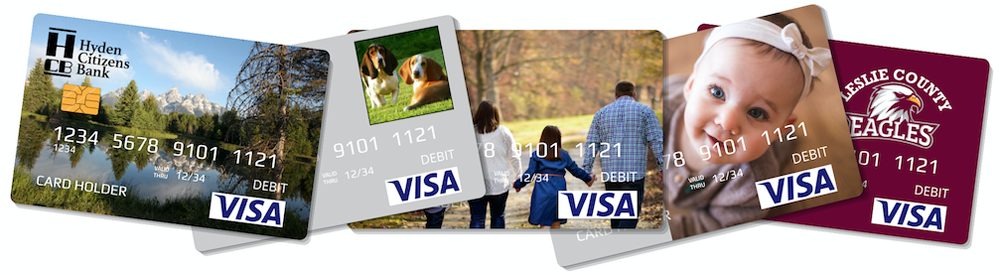
PERSONALIZE YOUR HCB DEBIT CARD
Whatever means the most to you can be displayed on your personalized Hyden Citizens Bank Debit Card, making it the favorite card in your wallet! You can put one of your own images or other images on your Debit card–you may choose a favorite photo of your kids, family or pets, vacation fun, child’s artwork or choose from a gallery of images. Start designing today!
Fee for your personalized debit card is $20 per card.
Click here to design your debit card!
SHAZAM BRELLA
01
SHAZAM BRELLA
Download the BRELLA Debit Card app today-it is a great tool to help you manage your debit card! It allows you to set up fraud transaction alerting, monitor your account balance, place a temporary block on your card and locate the nearest ATM from your smartphone!
02
SHAZAM EASY PIN (1-855-327-9746)
Want to change your PIN? Please call the bank during regular business hours to request a reference number to change your PIN number. Then call the toll-free number (855-327-9746) and use the voice response system to create the PIN of your choice using the reference number. You will need to have your debit card during the phone call. Easy PIN is available to use anytime, day or night, weekdays and the weekend
03
SHAZAM FALCON FRAUD PROTECTION PROGRAM-FOR YOUR PROTECTION
If you receive a call, email or text from Shazam asking about your debit card activity, this may be because there has been a recent transaction(s) or activity on your account that appears to be fradulent and/or suspicious. They are wanting to verify that you are using the card and it has not been stolen. (NOTE: phone calls will be a live person, not a recording) Or, if you experience trouble using your card (such as a denied transaction(s) when you know your balance was more than the transaction total), your card may have a temporary block in place due to suspicious activity identified by the Falcon Fraud program. To inquire, call Shazam at (866) 508-2693 or contact us during normal banking hours at (606) 672-2344., simply click here and start typing.
04
PRIVILEGED STATUS ATM NETWORK

The Shazam privileged status network provides you with surcharge free transactions at any ATM bearing their logo. There are over 3,000 locations nationwide in over 20 states that participate! You can search locations by clicking here. Privileged Status
DIGITAL WALLET INFO
Cashless made effortless! You can now carry your Debit Card on your phone so you can pay for things using your phone, instead of your actual card. Load your debit card into the wallet app on your phone then simply place your phone over or near the terminal/reader at your favorite business and you can pay instantly.
This is a secure way to use your Debit Card. Your card number is not stored on your phone/device and, with each transaction, a unique code is used instead of your debit card number to protect your information.
It is a quick, easy, safe way to use your Debit Card without actually getting your card out of your wallet!
How to Set up and use Apple Pay
You can use Apple Pay wherever you see one of the symbols below. Or you can search for Apple Pay in Maps to see nearby stores that accept Apple Pay.
Add a card on your iPhone:
- Go to the Wallet app and tap . You can also search for the Wallet app in the Search feature. Or you can set up Apple Pay by going to Settings>Wallet & Apple Pay>Add Card.
- Follow the steps to add a new card, then enter the card security code.
- Tap Next. The bank will verify your information and you will be asked to enter a security code which will be sent to the telephone number on file. If the telephone number on file is not correct, you can call (866) 205-9449 and verify your information or you can contact the bank to have your information updated.
- After your bank or issuer verifies your card, tap Next. Then start using Apple Pay.
Pay in stores and other places:
With your iPhone or Apple Watch, you can use Apple Pay wherever you see one of these symbols. You can pay with Apple Pay in stores, restaurants, taxis, vending machines, and many other places.
Pay with iPhone with Face ID:
- To use your default card, double-click the side button.
- Glance at your iPhone to authenticate with Face ID, or enter your passcode.
- Hold the top of your iPhone near the contactless reader until you see Done and a checkmark on the display.
Pay with iPhone with Touch ID
- To use your default card, rest your finger on Touch ID.
- Hold the top of your iPhone near the contactless reader until you see Done and a checkmark on the display.
For more information, you can visit apple.com or call us.
How to Set up and use Google Pay
To set up the Google Pay app:
- Make sure your phone’s Android version is Lollipop (5.0) or higher.
- Download Google Pay.
- Open the Google Pay app and follow the setup instructions.
- When you’re asked to, add a card. You will be asked to enter a security code. If the telephone number on file is incorrect, you can call (866)205-9449 to complete the verification process or you can contact the bank to have your information updated.
- You may be asked to set up a screen lock on your Android device. Google Pay works with PIN, pattern, password, fingerprint, or retinae scanning screen locks. It won’t work with facial recognition or screen locks like Smart Unlock or Knock to Unlock.
- To make purchases in stores: Make sure your device meets software standards, has NFC and NFC is turned on. Your phone must also have HCE.
- If you have another contactless payment app on your phone: In your phone’s Settings app, make Google Pay the default payment app.
If your Google Pay app disappeared after you open it for the first time, it may be because the app is not in your main screen. To show it again, in your device settings, change the Home Screen setting to Drawer or Show all apps.
How to Use Google Pay
You can pay with Google Pay wherever you see either the contactless or Google Pay symbols. Look for them on the payment terminal screen or on the cash register at checkout.
Pay in a store
Step 1: Wake up & unlock your phone. Turn on your phone screen and then unlock your phone. You do not need to open the Google Pay app.
Step 2: Hold the back of your phone close to the payment reader for a few seconds. When you are done paying, a blue check mark will appear on the screen. If the check mark is not on your screen:
- Try holding your phone in a different way. Your NFC antenna could be near the top or bottom of your device.
- Hold your phone closer to the payment reader.
- Hold your phone for a few extra seconds.
- If there is a check mark but the cashier says the payment didn’t work:
- Double-check that the store accepts mobile payments.
- Contact your bank to make sure your card is working right.
Step 3: If prompted, follow the instructions on the screen. Some stores use older software that asks for a PIN or signature. If you are asked, follow the steps on the screen.
- Debit cards: Enter the PIN you set up with your bank. This PIN is different from the PIN you use to unlock your device.
- Credit cards: For larger transactions, sign the receipt or the signature box on the screen.
For more information, please visit support.google.com or call us.
How to Set up and use Samsung Pay
You can pay with Samsung Pay when you see these symbols.
Set up Samsung Pay on your phone:
- Samsung Pay usually comes preloaded on compatible phones, but you can always reinstall it, if needed.
- Once it’s installed, open Samsung Pay, and then tap Get started. Enter a new PIN for Samsung Pay, and then enter it again to confirm.
- To add your debit card, tap Menu in the top left corner, and then tap Cards.
- Next, tap Add card (blue +card icon), and then tap Add credit/debit card.
- Follow the on-screen instructions to register your card. When you add a card, you must agree to the card’s terms and conditions. If your telephone number used for security verification is incorrect, you can call (866)205-9449 to complete your verification process or you can contact the bank to have your information updated.
When you’re ready to pay, open Samsung Pay on your phone.
- Tap Pay, and select your preferred card.
- Tap PIN or IRIS, and then enter the required security information. Or if you have fingerprint security set up, simply place your finger on your phone’s fingerprint scanner.
- Next, hold the back of the phone up to the contactless reader and perform your desired actions to complete your purchase.
For more information, visit Samsung.com or call us at the bank.
Frequently Asked Questions and Answers

Where can I use Apple Pay, Google Pay and Samsung Pay?
You can use Apple Pay, Google Pay and Samsung Pay with your phone or smart watch at hundreds of thousands of stores and restaurants whose payment terminals are set up to accept contactless payments.
Look for these symbols at stores that accept digital wallet payments.
In addition, you can also use your phone, smart watch, tablet and computer for online purchases at participating merchant apps.
What are Digital Wallets and Apple Pay, Google Pay and Samsung Pay?
Apple Pay, Google Pay and Samsung Pay are digital wallets that allow you to pay for purchases using your phone, smart watch, tablet and computer within an app on your device. Purchases made using your phone and watch may require you to hold your phone near a contactless reader/terminal at the point of sale or can be completed through an app.
Can I use my bank debit card with Apple Pay, Google Pay and Samsung Pay?
Yes, you can use your bank debit card by opening the app and adding a new card.
When I add my bank debit card, it doesn’t look like the card in my wallet app. Why?
When your bank debit card is loaded into the wallet app on your device, it may not look like the exact bank debit card you have. We use a graphical representation, not an exact replica of your bank debit card. If you have a personalized debit card, the graphical representation will resemble the standard bank debit card instead of your personalized card’s appearance.
How can I make my bank debit card my default card in Apple Pay, Google Pay and Samsung Pay?
In the settings for your wallet app, you can specify which card should be your default card. Usually, the first card you load into the wallet app on your device will be the default card.
Is Apple Pay, Google Pay and Samsung Pay safe and secure for making purchases? How does this help protect me and my card from fraud?
The safety and security of your account information are our highest priority. Your card number is not stored in your phone. A device account number is loaded into the secure element on your phone instead.
As a security measure, you may receive a “verification required” message when adding your card to Apple Pay, Google Pay or Samsung Pay. Once you have verified your identity, an on-screen message will appear stating that the card is ready to use. This verification process is part of our multi-layered approach to security.
When you make purchases using Apple Pay, Google Pay and Samsung Pay and your bank debit card:
- Your full card number is not shown to the merchant
- Only your fingerprint, face ID or device passcode can authorize a purchase
How are my privacy and personal information protected using Apple Pay, Google Pay and Samsung Pay?
Since Apple Pay, Google Pay and Samsung Pay do not store your bank debit card number in the device, you never reveal your name, card number or security code to merchants. By using a device account number as a substitute for your card number, you no longer need to share your personal account information when you shop.
Am I able to opt out of Apple Pay, Google Pay and Samsung Pay at any time?
Adding your bank debit card to Apple Pay, Google Pay and Samsung Pay is your choice; you can add and remove cards when needed.
What is the charge for using Apple Pay, Google Pay and Samsung Pay?
There is no charge or fee from the bank for loading and using your bank debit card using Apple Pay, Google Pay and Samsung Pay. However, standard messaging and data rates may apply, depending on your wireless plan. In addition, regular bank account service charges will apply depending on your account agreement.
How can I view transactions made using Apple Pay, Google Pay and Samsung Pay and my bank debit card?
You can view your transactions in the setting features for the wallet app on your device. You can also view your account transactions by using online banking through the mobile banking app or online at www.hydencitizensbank.com. In addition, you can call the bank anytime to verify a transaction or if you have questions about your account.
I tried to use Apple Pay, Google Pay or Samsung Pay at my local store but it was declined. What happened?
There are a number of reasons a transaction could be declined. Even if a store has the symbols and signage saying they accept this form of payment, it could be an issue with their terminals which may not be set up correctly, or their communication/internet link may not be working properly or the terminal may have malfunctioned. You can ask them to retry it. If it continues to happen, you will need to use your actual card or cash to complete the transaction.
If you feel there is an issue with your account, contact the bank to review your account balance and check to ensure your debit card is active.
What if my bank debit card is lost or stolen?
- If you use the Brella debit card app, block/suspend your debit card until you report it stolen/lost or you find it. This will ensure it is immediately unavailable for use.
- Please call the bank immediately to report your debit card lost or stolen and mention that you are an Apple Pay, Google Pay or Samsung Pay user. The bank will close your card so that no more purchases can be made using your card and reissue a replacement.
- You should also remove the lost or stolen card from your wallet app on your device using the Remove Card option.
- When you receive your replacement card, you will need to add the new card to your wallet app before making any purchases.
What if my phone/device is lost or stolen?
In addition to notifying your wireless carrier, please call the bank promptly and mention that you are an Apple Pay, Google Pay or Samsung Pay user so that we can disable your card for use with Apple Pay, Google Pay or Samsung Pay. If you locate your device, you will need to add your card back to your wallet app before making purchases.
For more information, you can contact the bank or visit:
Apple Pay: www.apple.com
Google Pay: www.support.google.com
Samsung Pay: www.samsung.com